Focus a node
Magnify one node and quiet the surrounding node chrome while you work.
Updated 1 min read
Focus mode magnifies a supported node while leaving the rest of the canvas available. It hides surrounding node chrome so the selected work is easier to follow.
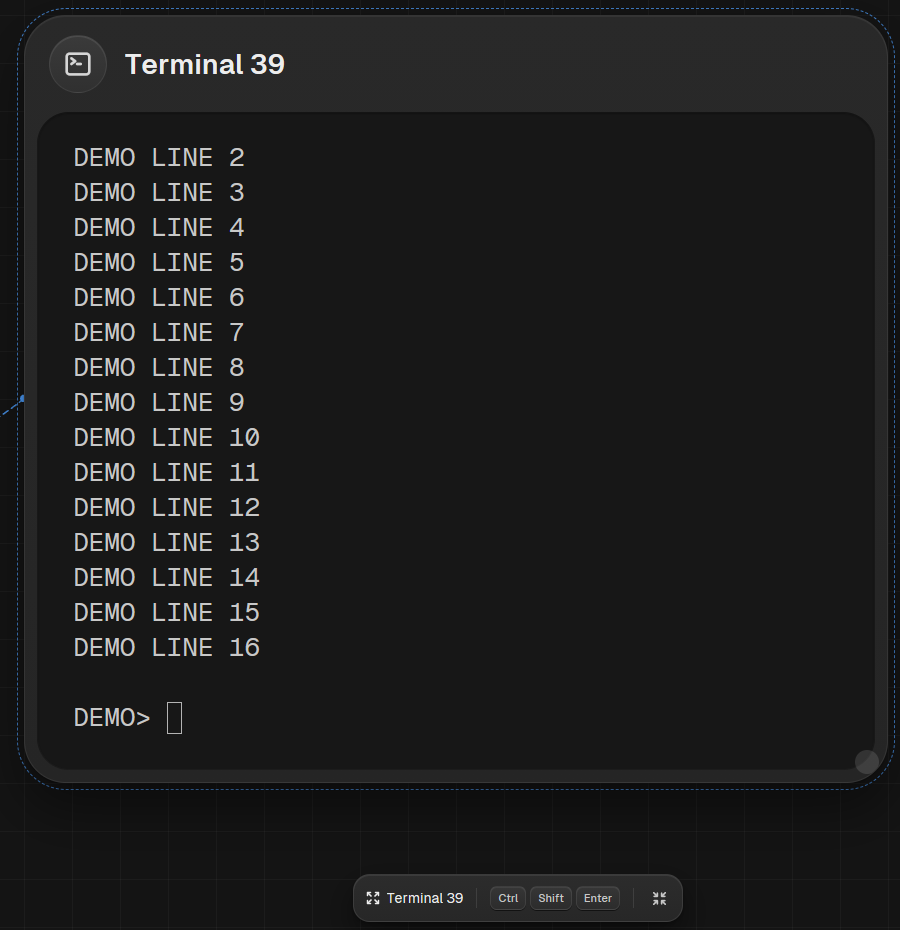
Enter focus mode
- Select a terminal, note, file, or portal node.
- Double-click its header, choose Focus on the node bar, or choose Focus selected node from the command palette.
- You can also press F when the canvas has focus. The focus chord works even while a terminal is focused: Ctrl + Shift + Enter on Windows or Linux, or Cmd + Shift + Enter on macOS.
Leave focus mode
- Choose Exit focus on the node bar or Exit focus mode in the command palette.
- You can also use the same focus chord, choose the exit pill, or press Escape if the key reaches the canvas.
LimitFocus magnification stops at 2× and does not resize the node or save a new canvas layout. Drawings and draft terminals cannot be focused.
Something missing or wrong? Ask in the Discord or write to hello@miguer.com.