Connect canvas nodes
Draw explicit connections so agents can find one another and reach the notes or portals they need.
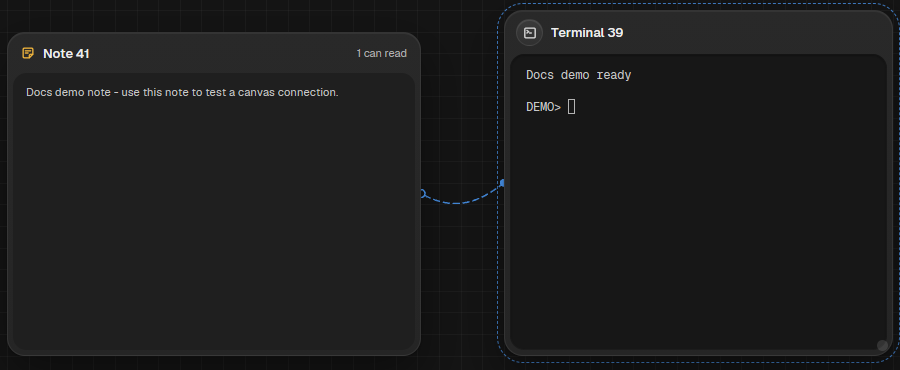
Connect from an agent
Select a terminal, choose Connect on its node bar, then pick a destination from the list. You can also activate the canvas Connect tool and choose both endpoints. MAO draws a wire between them.
Give an agent the context it needs
Connect one agent to another to let them discover each other and route tasks and results. Connect a terminal to a note when that agent needs to read or update it. A terminal-to-portal connection grants that terminal access to the browser or device portal.
Remove access
Select the agent and disconnect the edge from its node bar or menu. The wire represents an access grant: when it is gone, that terminal no longer has that peer or context connection.
Something missing or wrong? Ask in the Discord or write to hello@miguer.com.