Open a browser portal
Place an embedded Chromium browser on the canvas and use its navigation controls.
Updated 1 min read
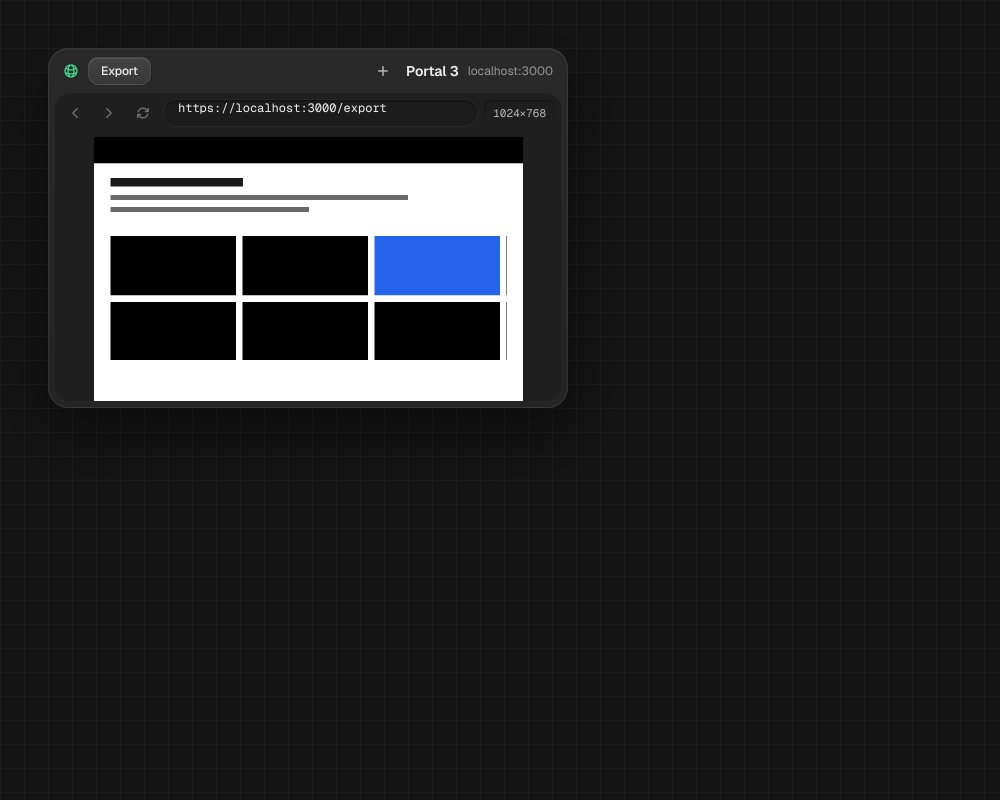
A browser portal places an external Chromium window on the canvas. You can browse from its address bar and connect an agent when you want it to inspect or control the page.
Browse in a portal
- Choose New portal and place it on the canvas.
- Enter a URL in the address bar.
- Use Back, Forward, Reload, New tab, and the tab controls to navigate.
- On Windows/Linux, use Ctrl + L, Ctrl + T, Ctrl + R, or Ctrl + W. On macOS, use Cmd with each key.
- Navigate back or forward with Alt + Left/Right on Windows/Linux, or Option + Left/Right on macOS.
NoteConnect an agent terminal to the portal before using
mao portal commands.LimitOnly the active tab is durable when reopened. Browser profile data, popups, and downloads are not included in this stage.
Something missing or wrong? Ask in the Discord or write to hello@miguer.com.